Monday, 23 March 2015

Processing

Hello again. We've started programming in computing with Processing and Arduino. Processing is an open source programming language and integrated development environment (IDE) to create designs and electronic or media art. For example, you can create figures which follow the mouse, stay the same, move aleatory or through your keyboard's keys, or follow orders, with different colors and shapes, and make them do something interesting.

We worked with the exercises from the Creative Technologies web, and then modified them, so in the 1st block from this webpage you can find the explanations about these exercises and how to do them.


To set the size of the window that appears we use the function void setup(). Data is inserted between {} and each line with data ends with ; .

A first exercise useful to learn is creating a figure with different shapes, sizes and colours, and place them in a coordinate or make them follow the mouse. The properties of these figures and the background colours are set with the function void draw()

Another simple exercise to learn is creating a line whose end follows the mouse and leaves a trail through his way, by making one of its ends follow the mouse with the coordinates line(0, 0, mouseX, mouseY).

Then we also made a kind of snake which follows the mouse and changes colour through the time. I changed its shape, the colours, the time in which it changes colour...

A more complicated practice was making a digital clock which was based on the computers' clock. We inserted the numbers' images, changed the shape of the clock, put it horizontally and added the colons.

To finish with Processing we made a videogame in which something moved with the keyboard keys had to catch a falling object. I set all the images, changed the time limit, set a winning objective and adjusted several things.

Programming is complicated if you have to do it from scratch, but with Versktad's webpage it's a lot easier, it explains it very well and you can manage to change already existent programs.

I hope it was useful and you liked it, in the next post I'll write about Arduino.

Golden Ratio in design

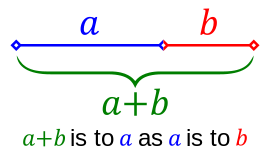
We've been asked to write something about the Golden Ratio in design. This amazing term is the one which appoints the proportion between two quantities when their ratio is the same as the ratio of their sum to the larger of the two quantities, and you can see it better in this image:


This ratio can be obtained from the division between two consecutive numbers from the Fibonacci progression (Fibonacci or Leonardo of Pisa was an Italian mathematician from the XII and XIII centuries), whose numbers are obtained through the addition of the two previous numbers of the succession (1,1,2,3,5,8,13,21,34,55,89,144...). This division has a result of roughly 1.618.
Golden Ratio in nature

This ratio appears naturally in several aspects of nature as the position of some plants' leafs or petals, the shape of shells, galaxies, reproduction of rabbits... Even the entire human form may be broken down into a series of Golden Ratios.

But, appart from that, many designs are based on the Golden Ratio, as it is considered as a beautiful proportion to see. Some examples are the shapes of credit cards, postcards, playing cards, posters, wide-screen televisions, photographs, light switch plates and cars, webpages, and many brands' logos. There are also even hisatorical art samples which show the Golden Ratio, such as portraits, paintings, buildings, sculptures...Some of these historical samples are the Athens Parthenon, the Mona Lisa, the Vitruvian Man, and many other paintings, sculptures and buildings, as a result of trying to create beauty.


According to more actual designs, for instance, most apple designs are based on the Golden Ratio, as their logo, the iCloud logo or their mobile phones. Something we use daily as our credit cards or identity cards have the Golden Ratio on them. Also the logos of National Geographic, Toyota, Pepsi, BP, Grupo Boticario, Twitter, and also the Twitter main webpage, but surely many more have this ratio. You can see these examples here.

To sum up, the Golden Ratio or Fibonacci number is something which surrounds us naturally or artificially, that makes us see things beautiful. It may appear by chance or be really studied by designers, but it's on many things we see, and realizing and learning about it is amazing.

I hope you liked and learned a bit about this wonderful ratio. I'll write the next post soon, see you.

Saturday, 7 February 2015

Alan Turing

Hello again. We've been told to post something about Alan Turing, who was a British pioneering computer scientist, mathematician, logician, cryptanalyst, philosopher, mathematical biologist, and marathon and ultra distance runner. 

Alan Turing, considered father of modern computing, was born in 1912 and he was homosexual. That's why he is supposed to have killed himself ingesting cyanide in 1954, because that time homosexuality was punished (he was chemically castrated and condemned for 61 years). He's recently been reprieved by Isabel Queen.

He influenced the end of the second world war because he cracked the "unbreakable" nazi code Enigma through his electromechanical machine, which is considered as a precursor for modern computers. This machine made a set of logical deductions for any possible combination.

Another important thing he did is create the first detailed design of an ACE (Automatic Computing Engine), a computer of programmed storage. Analising this and wondering whether a computer could compose music or think, he made an experiment, the Turing Test, which considered a machine "smart" when a person was unable to distinguish computers' answers from real persons' answers. Nowadays we know the CAPTCHA, which is the reverse of Turing test.

He also made a chess programme, studied the Fibonacci numbers in nature, worked in cybernetics and started programming, for instance, so he was a great man with a sad ending.

In brief, Alan Turing made great progress in computing and science in general, and maybe, if it weren't for him, we wouldn't have all these smart gadgets or be so computing-developped.

I hope you learned a bit more with this post, have a great day.

Thursday, 5 February 2015

QCad

Welcome again in this second term, and happy new year, by the way. We've been working with QCad, which is a free Computer-Aided Design (CAD) software application for 2D design and drafting.

We've copied some already-existent designs and learned how to make lines, angles, circles and arcs, how to dimension, fill and move figures, how to force positions or splay corners...
This is a very visual programme and I think it's easy to use once you know a bit about technical drawing. You have an icon menu on the left of the window where you can choose the action or the figure you want. Then, after you choose the figure you want and the way you want to draw it by clicking on the specific icons, you can draw it two ways:
-By just drawing it on your own on the work space, which has a black background divided in squares of 10x10 units, separated by points
-By writting the coordinates it asks you on the gap below. The points are inserted as x,y, the distances as @x and the angles as <x. Depending on the function you choose, you may have to insert the radius on a gap above.

When you already have something drawn you can "snap" (force) the speific point you want to choose so that it's more accurate and you don't accumulate errors, for example snap endpoints (when a line ends), grid (the spots given on the workspace), middle, intersection (where the lines get crossed)... and restrict the area.

To work in different colors or with different types of lines you can add several layers on the column on the right, and edit their characteristics.

And more or less these are the basic things we've learned in our IT class, but if you have any question you can comment this post and ask. I leave here my practices.
I hope it was interesting and useful, have a nice day.


Friday, 12 December 2014

Excel III: Customizable laptop app

Hello for the last time in this term. The last excel practice we've made consists on an application to make a laptop with the components you choose, which gives you a budget and the possibility to adjust a price limit.
The first sheet is a front page with linking buttons to the rest of the sheets, as always.

The components' sheet is a simple one but it takes some time and it's such a tedious work because you have to look for information of laptops' components and their prices. The only remarkable thing here is the format of the price cells, in euros, and the linking buttons to the other sheets.

The invoice sheet is very complex. For the price of each component I set a "VLOOKUP" function, which I explained in the post about the automatic invoice, with this code: =BUSCARV(C4;Componentes!B2:C13;2;FALSO). To make a dropdown list for each component I used a data format called data validation, as a list, taking the data from the respective chart from the components' sheet. For the final price I added all the components' prices and then I added the 21% of taxes as you can see in the image. And as alert I added an 'IF' function which warns you if the final price exceeds your personal price limit, and which is =SI(C14=0;"";SI(D17>C14;"CUIDADO, ¡SUPERADO!";"NO SUPERADO AÚN")). 
To make it become red I added a conditional format only applied to cells with the specific text that is shown when the personal limit price is exceeded. But to alert you in a greater way I also added an error message through another data validation in the price limit cell. Here you have to make possible only a lower final price amount than the price limit amount, as the image below shows, and set your own error message.


I hope it was useful, you can always ask me anything in case of doubt. Have a great Christmas time and enjoy yourselves on this holydays!

Friday, 5 December 2014

Excel II: Ecuation solver

Hello again. The second big project we've made with excel is an ecuation solver which can solve simple ecuations of first degree and of second degree quickly.

In the first sheet there must be a front sheet that links to the rest of the sheets: 1st degree ecuation, representation of the 1st degree ecuation, 2nd degree ecuation and representation of the 2nd degree ecuation. You can do it with a macro or with a hyperlink as the image shows.

For the first degree ecuation I just had to write the ecuation leaving gaps where each term had to be written and leave a solution gap where I wrote the formula to solve the ecuation. I also made it notify if there were terms left. So my function was =SI(D7=0;SI(F7=0;"¡Faltan coeficientes en la ecuación!";"¡Faltan coeficientes en la ecuación!");(H7-F7)/D7). I solved the ecuation leaving the x alone.
For its representation I wrote the formula as in the previous sheet and gave several values for the x in a chart and, to obtain the respective value of y, I just made a formula replacing x by the value given respectively: =SI(C10=" ";" ";$D$5*C10+$F$5-$H$5). To add the graphic you insert a lines graphic and set the data as the image shows. I also added linking buttons as in all the sheets.

And for the second degree ecuation it's the same but with a different formula: =SI(D7=0;SI(F7=0;SI(H7=0;"¡Faltan coeficientes en la ecuación!";"Ecuación incompatible");"Ecuación de primer grado");SI((F7^2-4*D7*H7)>=0;((-F7+(RAIZ(F7^2-4*D7*H7)))/(2*D7));"Sin resultados reales")) for the first result and: =SI(D7=0;SI(F7=0;SI(H7=0;"¡Faltan coeficientes en la ecuación!";"Ecuación incompatible");"Sólo hay un resultado");SI((F7^2-4*D7*H7)>=0;((-F7-(RAIZ(F7^2-4*D7*H7)))/(2*D7));"Sin resultados reales")) for the second result. 

To make its representation it's the same, replace the x by different values to obtain the y, and create the graphic with that values. The formula I used was: =SI(C10="";"";$D$5*(C10^2)+$F$5*C10+$H$5). 

I made erase and print buttons with macros in each sheet so, if you want to know how I did them, visit my previous post. I also added linking buttons in each sheet to link to the rest of the sheets.

I hope it was useful and if you've any questions, please ask me. See you.

Friday, 28 November 2014

Excel: automatic invoice

This long period of time I haven't posted anything because we've been making some Excel practices (and I've also been to New York!!!). At first we remembered how to make some simple functions as multiplying, dividing, adding, subtracting and other more difficult functions as the average, inserting graphics, the "DGET", "DMAX", "DMIN", "DCOUNT" "DCOUNTA" or "IF" functions, the "IF" function within other "IF" functions and so. We also practiced format functions (percentages, money symbols, colour of the field depending on something...).

The first important project we've made was an electronic invoice with a record of products, clients and the charged amounts depending on what they buy.

The first thing I had to have in this excel book was a front or home page where you include the company data and some buttons to link to the other pages. You can do that with a macro or adding a hyperlink by right clicking on the button you've drawn or inserted, choosing "Hyperlink", "place from this folder" and the sheet you want to make that button access.

Then it was time to fill in the data within the clients' sheet. You have to fill in the name, surname, adress, phone number and e-mail adress manually but then you can add a special format to set their personal codes with three digits, for instance, as I did in my "B" column. I also set a "DGET" function in my "C" column so that it shows the three first letters of their surname (=EXTRAE(D4;1;3)). Then I added a conditional format on my "F" column to green colour if the client is a man (M) or yellow color if it's a woman (F) by setting that options in a new rule on "Condicional Format".

The easiest sheet is the products' catalog one. You just have to fill in the products' code, its name and its price. I also added the price with taxes. The code to do this consists just in multiplying the price by the percentage of the tax and add it to the price. For the code you can do the same as in the clients' sheet, making it have three digits automatically by adding zeros. As in the rest of the sheets I added buttons to access the other sheets.

The last sheet is the bill. At first you have to know the client who's buying so with filling the client code, his or her data has to be showed. This is possible with the function =BUSCARV(C5;Clientes!B4:L17;6;FALSO) in the case of my bill, just changing the number of column, the third factor of the function. The first one is the box in which the code is writen and the second one the chart in which the data must be searched. With the products it's the same but with another chart and another code box (=BUSCARV(C10;Catálogo!B4:F22;2;FALSO)). Then the tax and the discount are added.

To erase the data you just have to make a macro as the image shows, and erase all the fields you want (the code boxes and the number of products) and stop the recording of the macro. Then you add the macro to a button. To print it's just the same but pressing the print button while recording the macro.

I hope it was useful and if you have any question, just let me know. See you soon.

Wednesday, 15 October 2014

Internet of things

As in the project about the knowledge society I didn't expand much the concept of Internet of things, I'm going to devote this post to it.


The Internet of things (IoT) is the term we use to call the fact of having our gadgets and the things that surround us digitally controlled and interconnected through the net. This includes alarm systems, cell phones, printers, washing machines, coffee makers, blinds, headphones, lamps, wearable gadgets, machines components... And almost anything else you can imagine, so it's a huge network of connected devices and also people, which allows relationships betwen both groups.

It has the potential to impact how we live and work because of the great advances of the new technologies: broadband Internet availability, easy connection, new very capable devices, a great smart phone penetration, the decreasing technology costs... And in a short period of time we might be able to say that anything we want to be connected and controlled can be connected and controlled, and we'll live in smart cities and smart houses which interact with us.

For example we can change the temperature or the illumination of our house with a smartphone depending in our feelings, blinds can come down automatically when it's very sunny or at night; the trafic lights can control themselves depending on the traffic and the people waiting to cross the road...

So anything can be done automatically with IoT so life will be a lot easier as this is developped, locations will be known easily, economy would be more controlled, education will develop, what's turned on or off will be known, anything will be close to everyone even if it's on the other side of the world... And we should make this possible.

I wish you agree and you liked, I obtained some of this information at this webpage: http://www.forbes.com/sites/jacobmorgan/2014/05/13/simple-explanation-internet-things-that-anyone-can-understand/

See you!

Wednesday, 8 October 2014

Knowledge Society

Hi blog readers. The first project we had to do this course was a Word document about the knowledge society. In it we talk about what the concept of knowledge society involves, its characteristics and its background. This society is a progression from the information and communication society that also allows the management of the information skillfully.
I also speak about the areas in which it is important; our personal development and the social factor that makes us being interconnected and learn dynamically.
Other important factors are the problems that it may suppose with the use of technological devices (the Digital Divide, the cybercrime and other security problems) and I have to tell you to be careful with what you post or upload on the Internet and to control the time you spend on the net and valore if you are really taking advantage of the resources and the time you have in a good way.

Sociedad del conocimiento from Carmen Bueno Iglesias

I wish it was interesting and you liked, you can also watch the document here. Thank you for watching.

See you at the next post.

Tuesday, 23 September 2014

Welcome again!

Hello everybody, how has your summer been? We've come back from holidays and we're going to start a new Computing course. This course the subjet isn't called Computing but IT (TIC in spanish), and now we don't have the bilingüal classes option so we take them on spanish, but I'll try to continue writting in English.

This summer I've made some interesting things; I've been to a 3D computer design workshop using 3ds Max and I've made a 3D Pocahontas, I've recieved a graphics tablet to draw and design on the computer and I've been drawing with it, I've made a poster for a contest in my village through Corel Painter X3 and I've won...
But now the new course is starting and we're going to do a lot of interesting things too.

I'll be reporting you about our learning during the course with several posts, as I used to do last course, so I wish you like my blog and my new posts, see you in the next one.